You tap “New Notebook” in GoodNotes and freeze. There’s a dropdown full of size options and zero explanation of what any of them actually mean for your specific iPad and how you write.
Most people just pick A4 because it sounds familiar. Then three weeks later they’re either scrolling constantly or wondering why their printed notes look off.
Let’s fix that before it happens to you.
The Size You Pick Changes How Writing Feels
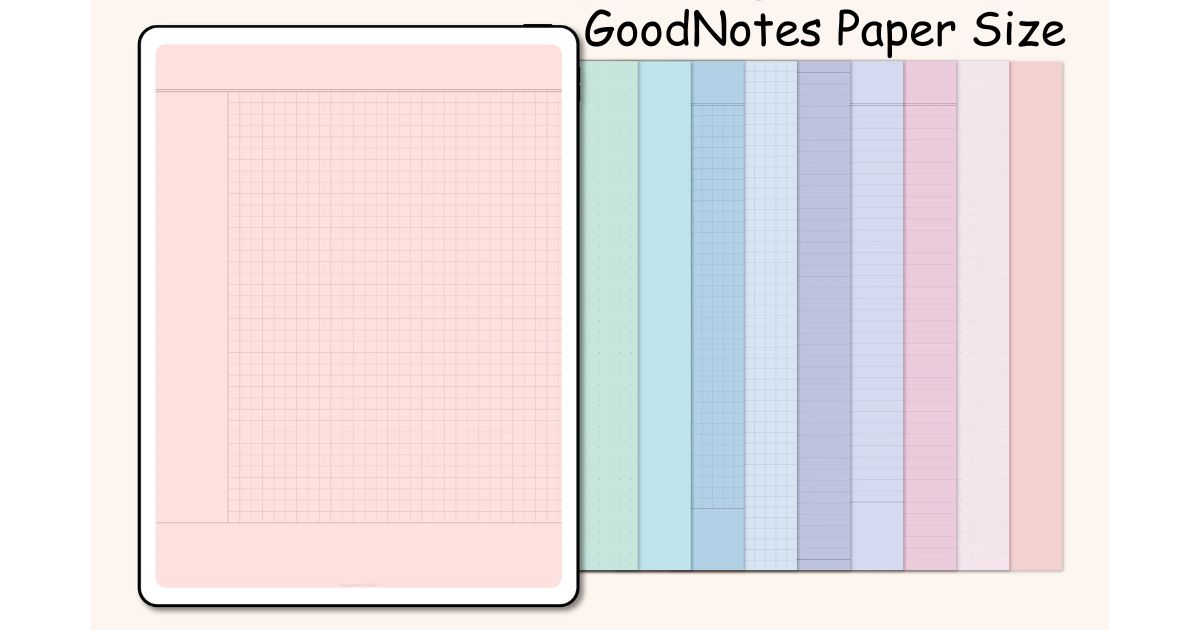
This isn’t about matching printer paper. Paper size in GoodNotes controls your canvas — how tall the page is, how wide, how much fits on screen before you have to scroll down.
Pick something too tall for your iPad and you’re always chasing the bottom of the page. Pick something too small and your handwriting feels cramped. The right size disappears into the background. You just… write.
What’s Actually Available
GoodNotes gives you a handful of presets plus a custom option. Here’s what each one is actually good for — not just the dimensions, but the feeling of using it.
GoodNotes Standard (6.32 x 8.17 inches) This one was built around iPad screens, not printer paper. The proportions mean your page fills the screen without an awkward empty strip at the bottom. For pure on-screen writing — notes, brainstorming, anything you’re not printing — this is the most comfortable day-to-day choice.
A5 (5.83 x 8.27 inches) Compact and opinionated. It forces you to keep things short, which is actually a feature if you’re making planners, habit trackers, or quick daily logs. iPad Mini users especially love this one.
B5 (6.93 x 9.84 inches) The underrated middle child. Wide enough for side-by-side layouts — vocabulary lists, recipe columns, lesson plans with sketches alongside bullet points — without the scroll-heavy length of A4.
A4 (8.27 x 11.69 inches) The international printing standard. Taller than everything else. Exports cleanly to Word, Google Docs, and PDF for sharing. On an iPad Mini it’s genuinely annoying to write on; on a 12.9″ Pro it feels perfectly natural.
US Letter (8.5 x 11 inches) Almost the same as A4 but slightly wider and shorter. The American default. If your study notes are getting printed and stapled, this is the size your printer expects.
Square The canvas matches your screen’s own proportions. No dead zones, no gaps. Radial brainstorming, concept maps, anything where ideas need to branch outward in all directions rather than flow down a page.
A3 (11.69 x 16.54 inches) A lot of screen real estate. Good for complex timelines, full-spread diagrams, or architecture sketches. You will scroll. That’s the trade-off you’re accepting.
A Quick Size Reference
| Size | Inches | Best Match |
| GoodNotes Standard | 6.32 × 8.17 | Everyday notes, on-screen writing |
| A5 | 5.83 × 8.27 | Planners, iPad Mini, daily logs |
| B5 | 6.93 × 9.84 | Journaling, two-column layouts |
| A4 | 8.27 × 11.69 | International docs, formal exports |
| US Letter | 8.5 × 11 | American printing, study handouts |
| Square | Screen-matched | Mind maps, visual brainstorming |
| A3 | 11.69 × 16.54 | Large diagrams, timelines |
The Standard vs A4 Debate
People go back and forth on this constantly, and both sides make sense depending on what they’re doing.
GoodNotes Standard is shorter. That’s the whole story. Shorter means the page fits your iPad portrait view without empty space eating the bottom third. When you’re writing freehand, that matters more than you’d think — your eye stays on the content, not the blank canvas below it.
A4 is taller. That extra vertical space is exactly what you want if the end goal is a printed document or a shared PDF. The export looks clean. No weird scaling, no cropped margins.
If you write mostly on screen: Standard. If the output lives on paper or in someone’s inbox: A4.
Read Also: Grad Cap Dimensions: The Honest Guide Nobody Bothered to Write
Changing Paper Size Mid-Notebook
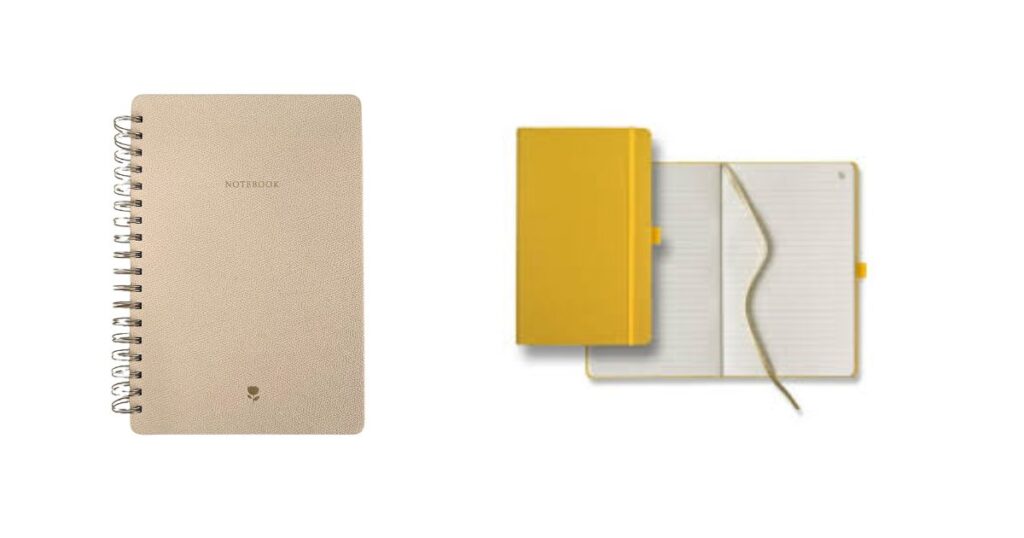
Tap the three dots in the top-right corner of your notebook. Select Change Template, scroll to your new size, pick a style (lined, dotted, grid, blank), and it applies to all new pages from that point forward.
Pages you’ve already written on won’t reshape. If you want those to match, duplicate them first, then use the Lasso tool to select and move your existing handwriting after the change. It’s a little fiddly but it works.
For brand new notebooks, pick the size during setup — much cleaner.
Custom Sizes: When Presets Don’t Cut It
Go to the template picker and tap Custom. Type in any width and height you want, in inches or millimeters.
Some setups people actually use:
- 9 × 16 inches for vertical planners built around a phone-screen feel
- 16:9 ratio for presentation slides that project without letterboxing
- Wide horizontal dimensions for flowcharts where you need width, not height
There’s no hard maximum. People import oversized PDFs to get even bigger canvases — A3 and beyond — and GoodNotes handles it fine. If you need a truly enormous canvas for a complex diagram, that’s your workaround.
Designing Templates in Canva for GoodNotes
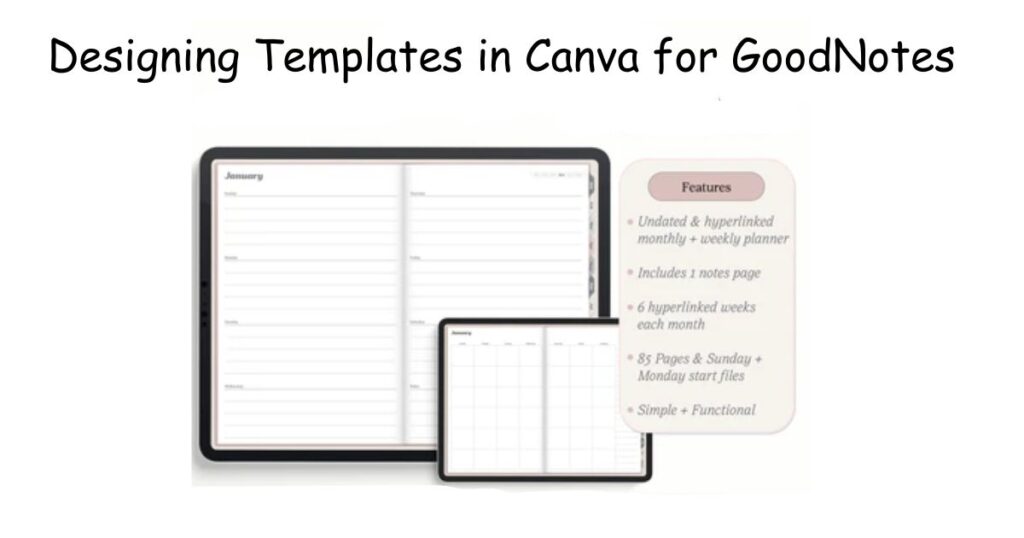
Canva doesn’t have GoodNotes Standard as a built-in preset, so you enter it manually.
Set your Canva canvas to 6.32 × 8.17 inches at 150 DPI for a clean result. For a high-resolution version, use 2154 pixels wide. For A4 at high res, use 2480 × 3508 pixels.
Export as PDF, open GoodNotes, import through the share sheet. The sizing stays exact and your lines stay sharp.
One thing worth checking before you finalize a template design: pen thickness in your Canva preview won’t automatically match GoodNotes tools. Test a page with actual writing before you build out a full template set.
What Usually Goes Wrong
Defaulting to A4 without thinking about the iPad you have. A4 on a standard 10.9″ iPad is fine. A4 on an iPad Mini means a lot of scrolling for not much gain. Standard or A5 would have been the better call.
Picking a custom size and then trying to print it. Custom dimensions don’t match standard printer paper. Scale it in Preview before you print or you’ll get cropped edges.
Assuming bigger pages mean more room to think. Sometimes they do. But a long canvas mostly means more empty space to scroll past. Most people do their best work on a page that feels full, not endless.
Loading a template designed for A5 into an A4 notebook. It’ll look stretched or cut off. Always check what size a template was made for before you import it.
Read Also: Flash Card Size: Everything You Need to Know Before You Make or Buy One
Printing Your Notes Without Surprises
A4 and US Letter print without any adjustment. What you see is what comes out of the printer.
GoodNotes Standard doesn’t match standard paper exactly. You’ll see slight scaling. It’s usually not noticeable on casual notes, but for anything that needs precise margins — formatted documents, structured handouts — stick to A4 or Letter from the start.
Custom sizes need a stop in the Preview app first. Scale to fit your paper size there before sending to print.
Honest Answers to Real Questions
Can different pages in the same notebook have different sizes?
Yes. Each page can have its own template. Mixing A4 notes with a square diagram page in one notebook is possible, just not immediately obvious to set up.
What size do most Etsy GoodNotes templates use?
Most are A4, A5, or US Letter. The listing should say. If it doesn’t, ask the seller before buying — loading the wrong size into your notebook creates mismatched layouts that are annoying to fix.
Is GoodNotes Standard good for Canva template sellers?
Yes, particularly for iPad-native planners. It tends to look better on screen than A4 does, which matters if your buyer is using it daily on a standard iPad.
What’s the biggest paper size GoodNotes supports?
There’s no listed maximum. Import a large PDF at any size and that becomes your canvas. A3 and larger custom dimensions work without issue.
Does paper size affect export file size?
Somewhat. Bigger canvases with lots of handwriting or embedded images produce heavier PDF files. It’s rarely a problem unless you’re exporting very long notebooks regularly.
The Short Version
Most people overthink this. The decision really comes down to two questions:
Will you print this, or is it screen-only? And which iPad are you on?
Screen-only on a standard iPad — GoodNotes Standard. iPad Mini — A5. Printing or sharing docs — A4 or US Letter. Brainstorming visually — Square. Everything else is just fine-tuning from there.
Pick one, write a few pages, and you’ll know within a day whether it’s right for you. Changing it later takes about thirty seconds.

I am the editor and author of StoriesRadius.com, a blog about measurements and dimensions. I enjoy turning numbers and sizes into simple stories that anyone can understand. From everyday objects to curious facts, I share clear guides based on real research and experience. My goal is to make learning about length, height, and size fun, useful, and easy for all readers.